Keep your song and guitar tone together
A useful guitar practice setup gets you back to the music quickly. In Jam Rig, a practice song keeps its linked rig, local backing track, loop, tempo, key, and resources together. You can work on a passage without rebuilding your plugin chain each time.
- Build your sound. Load compatible VST3 guitar plugins and save the chain as a rig preset. Start with the plugin-chain guide if you want to combine an amp and effects from different plugins.
- Create a practice song. Give it a recognizable title and link the rig you want to use.
- Add a local backing track. Use an audio file you have permission to use. Check playback with your guitar before adjusting loops.
- Balance the levels. Keep the guitar and backing track clear enough that you can hear timing and articulation.
Practice Mode and Jam Mode require an activated license. The free Play trial is for testing your plugin rig and audio setup.
Loop a difficult passage and slow it down
Set the A point before the part you want to learn and B after it. Leave enough musical context to hear the entry and finish the phrase. An A/B practice loop repeats a section of the backing track; it is different from recording an overdub in Jam Mode.
Reduce the backing-track speed without changing its pitch. For example, take a fast turnaround at a slower tempo until the notes are even, then move the speed back toward the original. Start with a short phrase and extend the loop as it becomes comfortable.
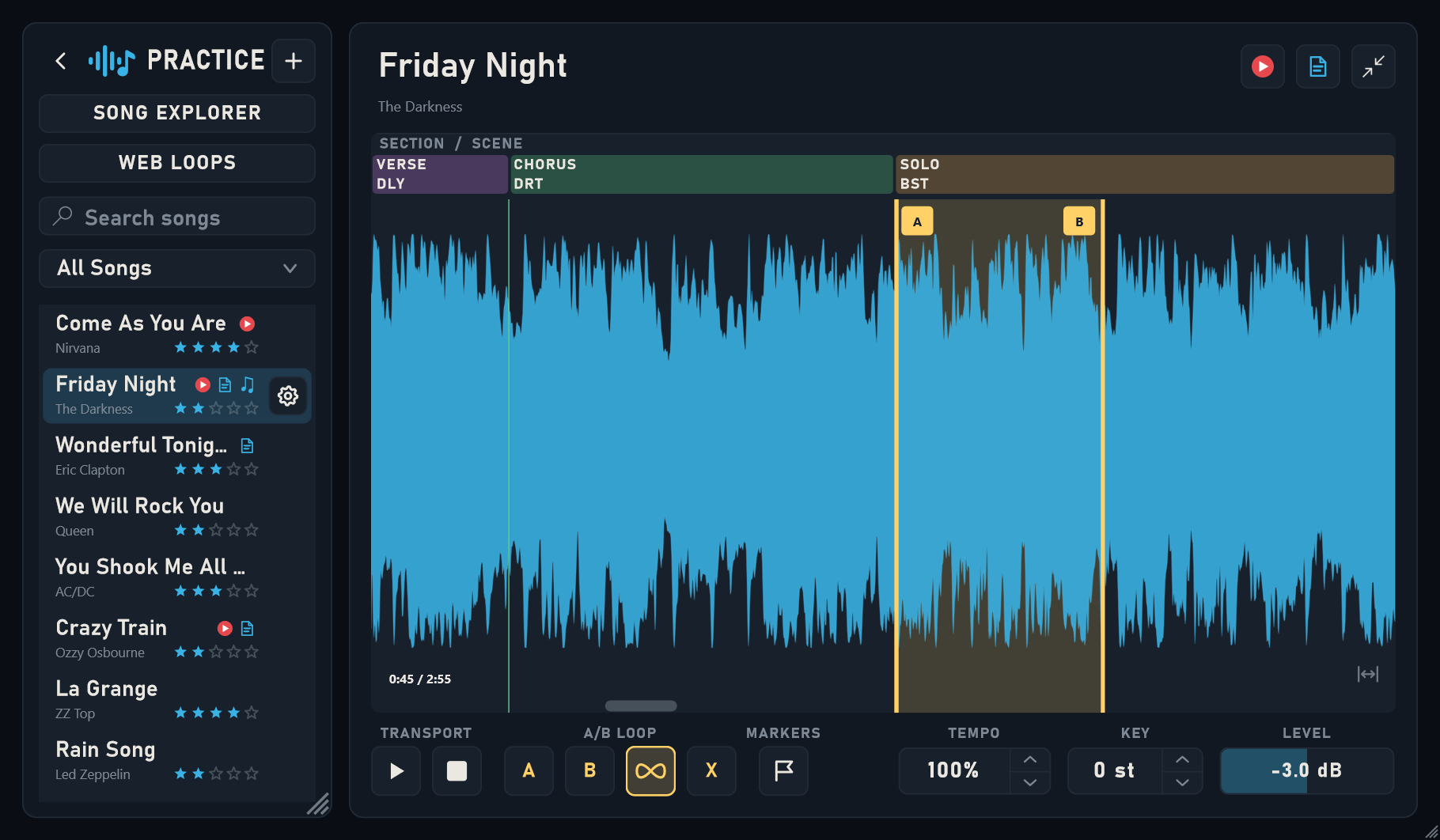
Save the practice song and reopen it before moving on. That is a useful check that your track, linked rig, and loop are ready for the next session. Keep local audio files in a stable folder so saved references continue to work.
Keep lessons, tabs, and notes with the song
Add a YouTube lesson link, a tab link, a local PDF, or practice notes to the song. YouTube and web tab links open in your browser; they are not local audio files loaded into the desktop backing-track player.
The separate Web Looper can repeat sections of an embeddable YouTube lesson, change playback speed, and add named markers. Its current page explains app availability and whether saving a section to Jam Rig is enabled. It does not download the video or remove the need for permission to use third-party content.
Try a simple practice note: “Loop the last two bars of the verse slowly, then play into the chorus.” The note gives your next session a clear starting point.
Record your own loops over a drum groove
Switch to Jam Mode when you want to build your own part. Choose a drum pattern, use a count-in, record a loop, and add overdubs. The dual looper gives you A and B parts so you can explore a verse and chorus instead of repeating one idea indefinitely.
Use Practice for working through an existing track and Jam for recording ideas over drums. Save the jam before leaving so you can return to it later.
Practicing with USB amps and floorboards
A compatible Positive Grid Spark, BOSS Katana, Line 6 Helix, Neural DSP Quad Cortex, or another USB audio-capable amp or floorboard can provide the interface for your practice rig. Check the exact model, its driver, and its recording and playback channels. Some routes use headphones; others may feed speakers or process the incoming signal differently.
With a floorboard, choose whether the guitar reaches Jam Rig with the hardware tone already applied or as a dry input for software plugins. Your software plugin chain runs on the computer, with the floorboard providing audio input and output. Route backing tracks to unprocessed playback channels when your device offers them.
First confirm that you can hear a backing track through your chosen output. Then enable your guitar rig and check for doubled direct monitoring or unwanted extra amp processing. A USB socket alone does not establish audio-interface support.
Use the manufacturer’s instructions for your model, such as Positive Grid’s Spark 2 USB guide and BOSS’s Katana recording overview. These describe manufacturer features, not certification of every device with Jam Rig. The audio setup guide covers Jam Rig’s starting points.
For floorboards, see model-specific documentation such as Line 6’s Helix Stadium USB audio guide or Neural DSP’s Quad Cortex interface guide. Quad Cortex uses a fixed 48 kHz USB audio rate, so set your software audio configuration accordingly.